In short
Open the free LinkedIn headline generator, drop your LinkedIn PDF or type your details, pick where you are now (working, student, looking, changing careers or founder), enter the job title you want and your top skills, and click Write my headlines. You get 6 headlines in different styles, each within LinkedIn's 220-character limit, with a search fit score and a marker at 120 characters. Fill in any [brackets] with real details, keep the important words early, and paste your pick into LinkedIn.
On this page
Step 1: Fill it in from your PDF, or type
Open the LinkedIn headline generator. The box at the top is optional: drop your LinkedIn PDF and it fills in your role, company, top skills, current headline and About. If your current title is an internship, it uses the field as your role and switches you to "Student or fresher".
You can also type everything yourself, which is what the example below does.
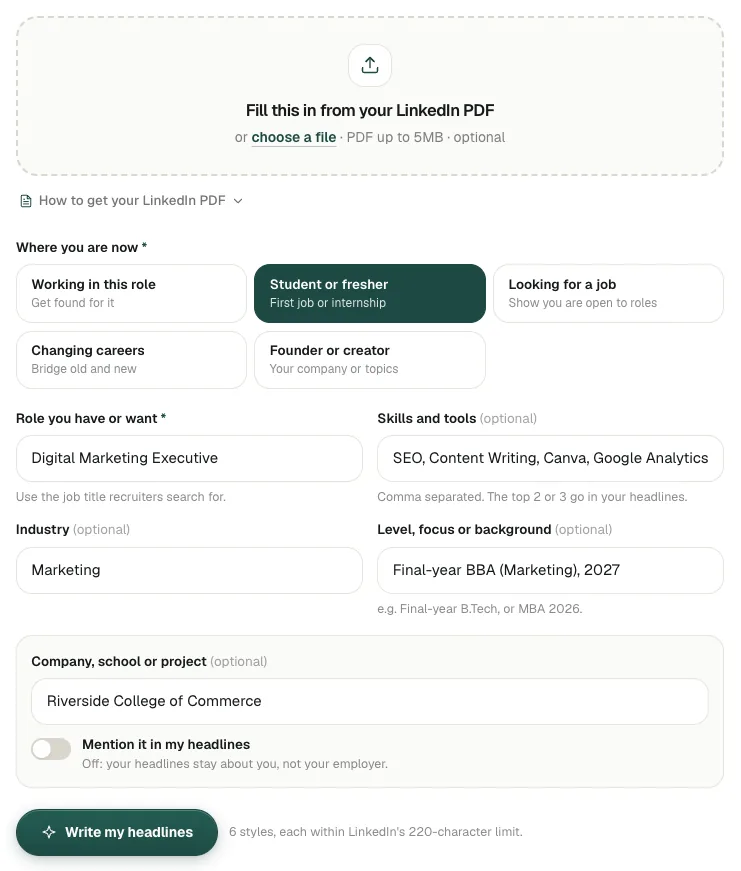
All screenshots in this guide were taken on linkedinrank.com with a made-up sample profile. The person, employers and contact details are made up.
Step 2: Choose where you are now
Pick the option that matches your situation. It changes the styles you get:
- Working in this role: get found for the job you do now.
- Student or fresher: your degree, the role you are aiming for and your skills; good for first jobs and internships.
- Looking for a job: shows you are open to roles without sounding desperate.
- Changing careers: bridges what you did before and what you want next.
- Founder or creator: your company or the topics you post about. Choosing it switches your company on.
Try it on your profile
The free LinkedIn Headline Generator applies this in a minute.
Step 3: Role, skills, industry and level
- Role you have or want (required). Use the job title recruiters type into search, such as "Digital Marketing Executive" or "Data Analyst". A field name alone, like "Digital Marketing", gives clumsy headlines.
- Skills and tools. Comma separated; the top 2 or 3 go into your headlines, so put your strongest first.
- Industry. Optional, for example Fintech or Healthcare.
- Level, focus or background. Your niche or level ("Senior", "B2B demand gen"). Students put their degree and year; career changers put what they did before, like "Former teacher, 8 years".
Not sure which skills recruiters search for? Run the keyword finder on a few job posts first; the keyword tools guide shows how.
Step 4: Decide about your company or college
The Company, school or project box has a switch: Mention it in my headlines. It is off by default, so your headline stays about you and not your employer. Switch it on when the name helps you: a well-known company, a top college for a student, or your own startup. When it is on, the name appears in 2 of the 6 headlines.
Click Write my headlines. It usually takes 5 to 15 seconds.
Step 5: Read the six headlines
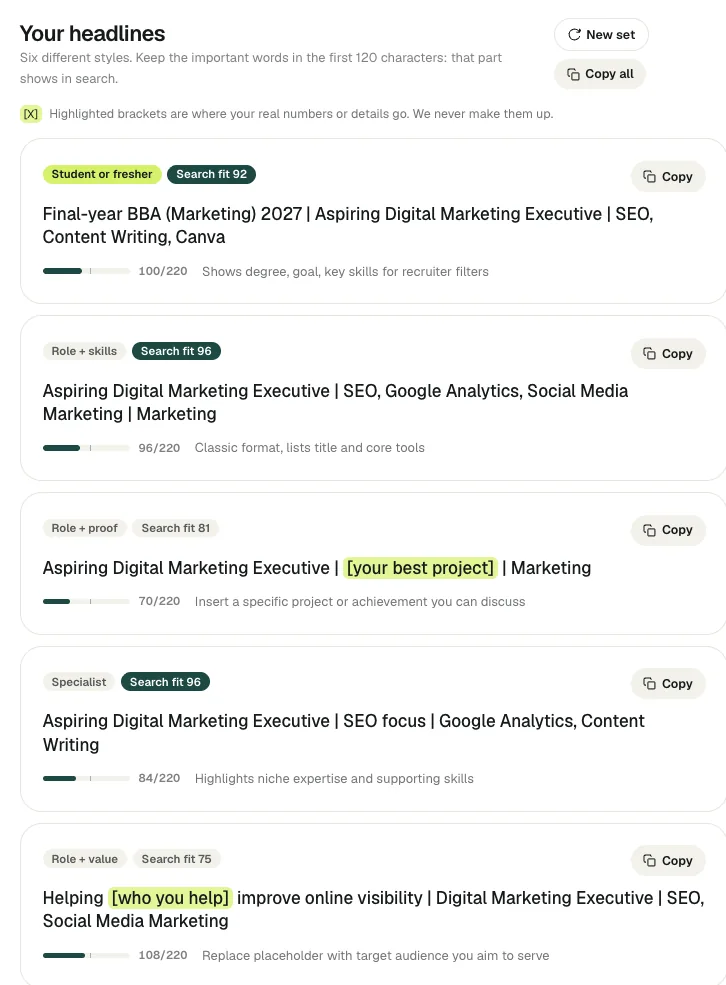
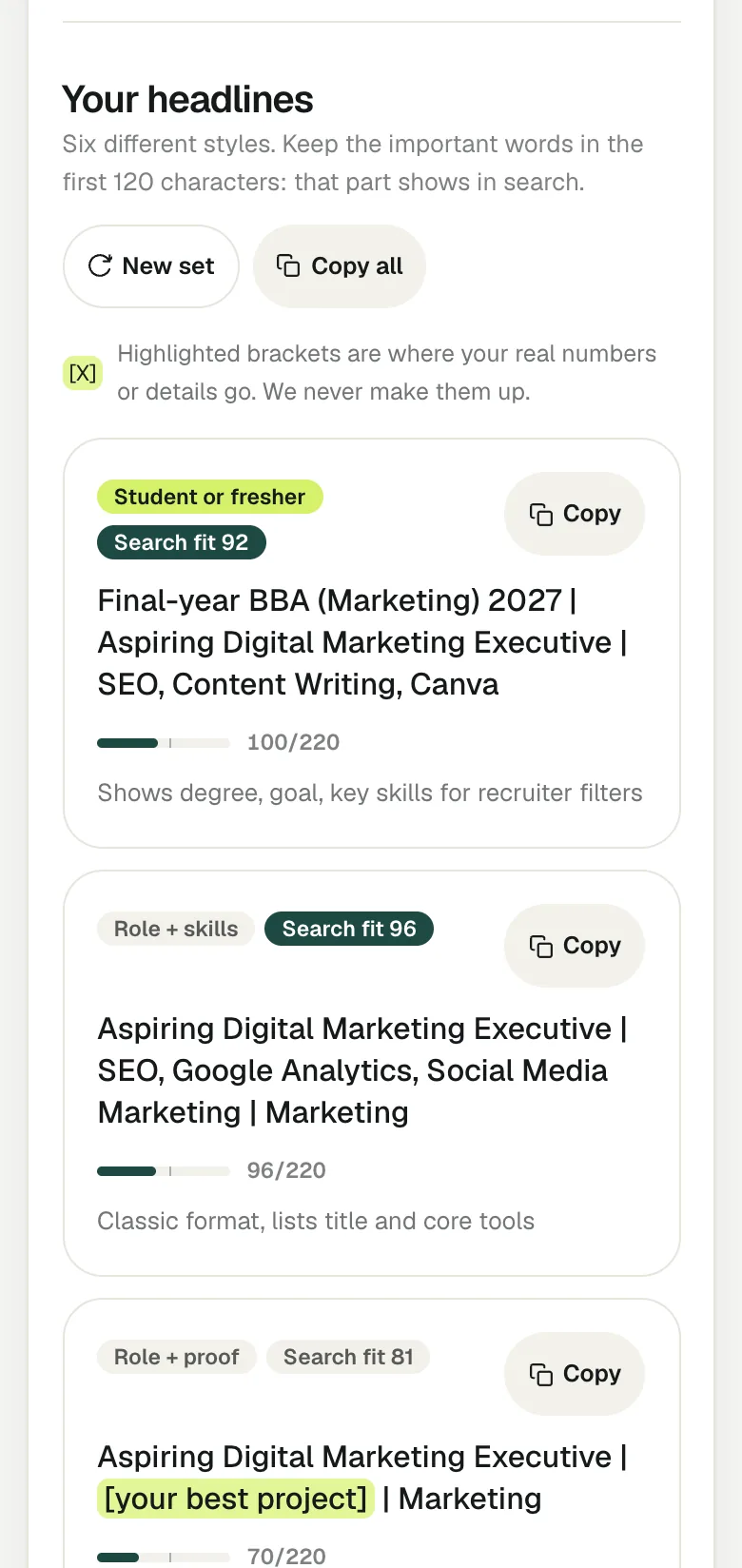
Each card shows:
- The style, for example Student or fresher, Role + skills, Role + proof, Specialist, Role + value, or Short and clean.
- Search fit: the tool's estimate of how well the headline uses the words recruiters search for your role. It is a guide for comparing the six, not a LinkedIn ranking.
- The length meter: how much of the 220 characters it uses, with a mark at 120, roughly what shows in search results.
- A tip on why the style works or what to fill in.
Not happy with any? Click New set, or change your inputs (usually the role or skills) and write again.
Step 6: Edit, check the length and paste it into LinkedIn
- Fill in or delete every [bracket]. "[your best project]" means the tool needs a real detail from you. It never makes one up.
- Mix and match. Take the opening of one and the skills of another. Keep your target job title in the first few words. Delete repeats such as a trailing '| Marketing'.
- Check the length. Anything after about 120 characters may be cut off in search and in comments.
- Copy it with the Copy button on the card, then on LinkedIn click the pencil on your profile intro and paste it into Headline.
Prefer your own AI? Under the results, "Prefer your own AI?" gives you a ready-made prompt with your details to paste into ChatGPT, Claude or Gemini. For headline formulas and more examples, see how to write a LinkedIn headline and headline examples for fresh graduates. Next, write the section people read after your headline with the About section generator.
Limits to know
- It only knows what you type. A vague role gives vague headlines.
- Students often get "Aspiring" before a role they do not have yet, which is honest. Remove it once you have the job.
- If the AI is busy, you get template drafts built from your inputs, with a note and a retry button.
- Search fit is an estimate. Where you appear in LinkedIn search also depends on the rest of your profile, your location and your network.
Questions people ask
Is the LinkedIn headline generator free?
Yes, with no signup. Each click writes 6 new headlines from what you entered.
What should I put in "Role you have or want"?
The job title people search for, such as Data Analyst or Digital Marketing Executive. Avoid a field name on its own or a made-up title.
Should I include my company in my LinkedIn headline?
Only if the name helps you, such as a well-known employer, a top college or your own startup. The switch is off by default so your headline stays about your skills.
What does the search fit score mean?
It is the tool's estimate of how well a headline uses the words recruiters search for your role. Use it to compare the six options, not as your LinkedIn ranking.
How long should my LinkedIn headline be?
LinkedIn allows 220 characters. Put the important words in the first 120 or so, which is roughly what shows in search results.
Written by Bhavishya Singla
Founder of LinkedInRank. Writes about how recruiters search LinkedIn and what makes a profile show up.
Add LinkedInRank as a preferred source on Google
See our new LinkedIn guides first in Google results.