In short
On a computer, open your LinkedIn profile, click More (on some layouts, Resources) under your name, and choose Save to PDF; the file downloads straight away. The LinkedIn phone app cannot do this, so on a phone open linkedin.com in Chrome or Safari, switch to the desktop site, and use the same More, Save to PDF steps. The PDF holds your headline, About, experience, education, top skills and certifications, but usually not your phone number. You can upload it to free tools that turn it into a resume, a cover letter or a profile check.
On this page
On a computer: three clicks
- Go to linkedin.com and sign in.
- Click Me at the top, then View profile.
- Under your name and headline, click More. On some profile layouts the button is called Resources.
- Choose Save to PDF. The file downloads to your Downloads folder, usually named
Profile.pdf.
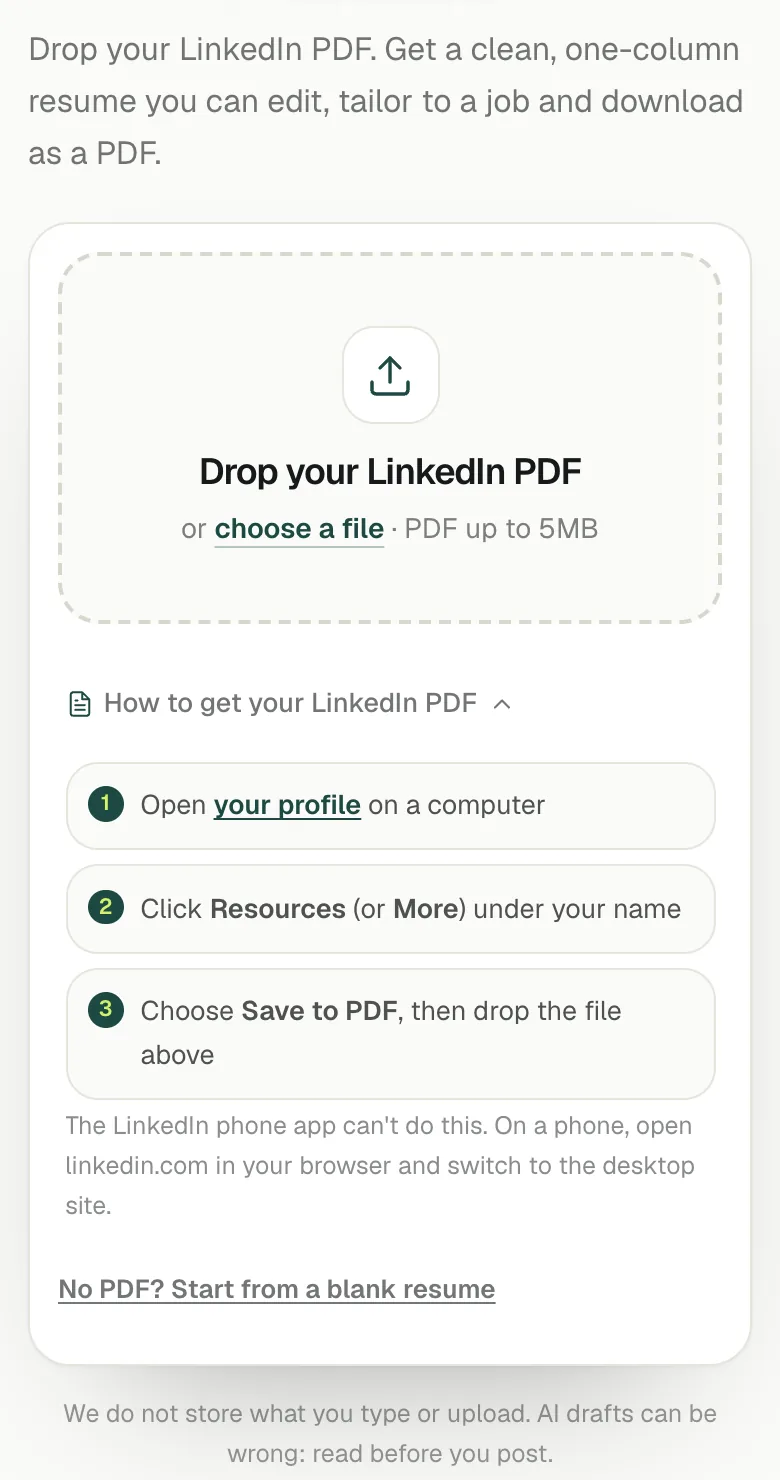
The same steps are built into every LinkedInRank tool that accepts a PDF, under How to get your LinkedIn PDF:

You can save any profile you can see this way, but for these tools, use your own.
On a phone: use the browser, not the app
The LinkedIn app for Android and iPhone has no Save to PDF option. The website does, so use your phone's browser:
- Open Chrome (Android) or Safari (iPhone) and go to linkedin.com. If it opens the app instead, long-press the link and choose to open it in the browser.
- Sign in, then switch to the desktop site:
- Chrome: tap the three-dot menu and tick Desktop site.
- Safari: tap the aA (page settings) button in the address bar and choose Request Desktop Website.
- Open your profile, tap More (or Resources), then Save to PDF. Zoom in if the buttons are small.
- The PDF goes to Downloads on Android, or to the Downloads folder in the Files app on iPhone.
Then, on the tool page, tap choose a file and pick the PDF from Downloads.
Try it on your profile
The free LinkedIn PDF to Professional Resume Maker applies this in a minute.
What the PDF looks like and what it includes
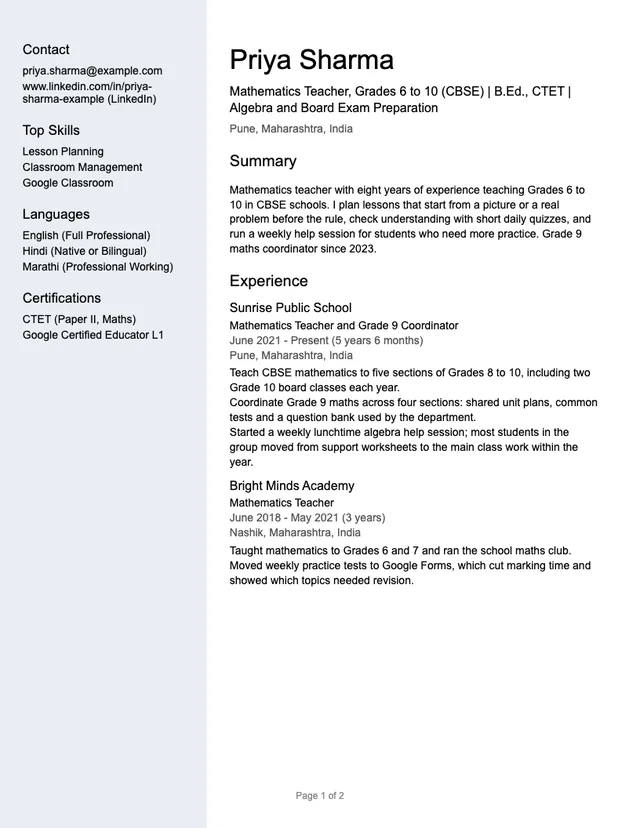
LinkedIn's PDF is a plain document of your profile: a side column with your contact details, top skills, languages and certifications, and a main column with your name, headline, location, About (called Summary), experience and education. Below is what one looks like, for a made-up teacher:
What to expect:
- Included: your headline, location, About, every role with dates and descriptions, education, your top skills, languages, certifications and honours, and your LinkedIn URL.
- Usually missing: your phone number (and often your email), the rest of your skills beyond the top 3, your photo, posts and activity.
- Text, not a picture. The PDF has real text, which is why tools can read it. A screenshot, or a PDF printed from your browser, does not work as well.
The PDF is only as good as your profile. If your experience entries are empty on LinkedIn, they will be empty in the PDF too, so fill them in first.
If Save to PDF is missing or nothing downloads
- No More or Resources button: you are probably in the app or the mobile site. Use a computer, or the desktop site on your phone.
- Nothing downloads: check your browser's downloads list, allow downloads from linkedin.com, or try another browser.
- The file will not upload: the LinkedInRank tools take PDFs up to 5 MB, which covers any LinkedIn export. Make sure you picked the .pdf file and not a screenshot.
- Old details in the PDF: LinkedIn builds it from your live profile. Update your profile, then save the PDF again.
What to do with your PDF
Your PDF works as the starting point for every free LinkedInRank tool that takes one:
- Turn it into an ATS-friendly resume (guide).
- Write a cover letter for a job ad (guide).
- Fill in the headline and About generators in one click.
- Compare your profile with job posts (guide).
- Get a free profile score with the fixes that matter most.
The free tools read your PDF to do their job and do not store it. Not sure which tool you need? See which free LinkedIn tool to use when.
Questions people ask
How do I download my LinkedIn profile as a PDF?
On a computer, open your profile, click More (or Resources) under your name and choose Save to PDF. The file downloads straight away.
Can I save my LinkedIn profile as a PDF from the app?
No. The LinkedIn app has no Save to PDF option. Open linkedin.com in your phone's browser, switch to the desktop site, and use More, then Save to PDF.
Why is my phone number not in my LinkedIn PDF?
LinkedIn usually leaves out your phone number and often your email. Add them yourself when you turn the PDF into a resume or cover letter.
Why does my LinkedIn PDF show only 3 skills?
The export includes only your top skills. Add the rest by hand on your resume, ideally in the words the job ad uses.
Is the LinkedIn PDF the same as a resume?
No. It is a plain export of your profile, usually longer and laid out in two columns. Turn it into a one-column resume and tailor it to each job before you apply.
Written by Bhavishya Singla
Founder of LinkedInRank. Writes about how recruiters search LinkedIn and what makes a profile show up.
Add LinkedInRank as a preferred source on Google
See our new LinkedIn guides first in Google results.