In short
Use the free LinkedIn keyword finder when you know the jobs you want: paste 3 to 5 job posts (with --- between them), add your LinkedIn PDF or profile text, and click Find the keywords to see the skills most posts ask for and which ones you are missing. Use the profile keyword analyzer to check your headline, About and skills against the common keywords for your field and get a search score out of 100. Both run in your browser with no AI, and nothing is stored. Add only the keywords you really have, to your headline, Skills and experience.
On this page
Two tools, two questions
| Keyword finder | Profile keyword analyzer | |
|---|---|---|
| Answers | What do these specific jobs ask for, and do I have it? | How findable is my profile for my field overall? |
| You give it | 1 to 10 job posts, plus your profile to compare | Your headline, About and skills (or your LinkedIn PDF) |
| Compares against | The words in the posts you pasted | A built-in keyword list for one of 15 fields |
| You get | Keywords ranked by how many posts ask for them, a match %, job titles and a headline idea | A search score out of 100, keywords found and missing, and what to fix first |
If you are applying for a particular kind of role, start with the finder: real job posts beat any general list. Use the analyzer for a quick health check of your whole profile. Neither uses AI and both run in your browser, so text you paste is not sent anywhere. If you drop a LinkedIn PDF instead, it is read on our server to pull out the text and is not stored.
All screenshots in this guide were taken on linkedinrank.com with a made-up sample profile. The person, employers and contact details are made up.
Keyword finder, step 1: Paste 3 to 5 job posts
Open the LinkedIn keyword finder. Find 3 to 5 posts for the role you want, on LinkedIn Jobs or company career pages, and paste each one in full, with a line containing only --- between posts. + Add another post adds that line for you. Try an example fills in two sample data analyst posts if you want to see how it works first.
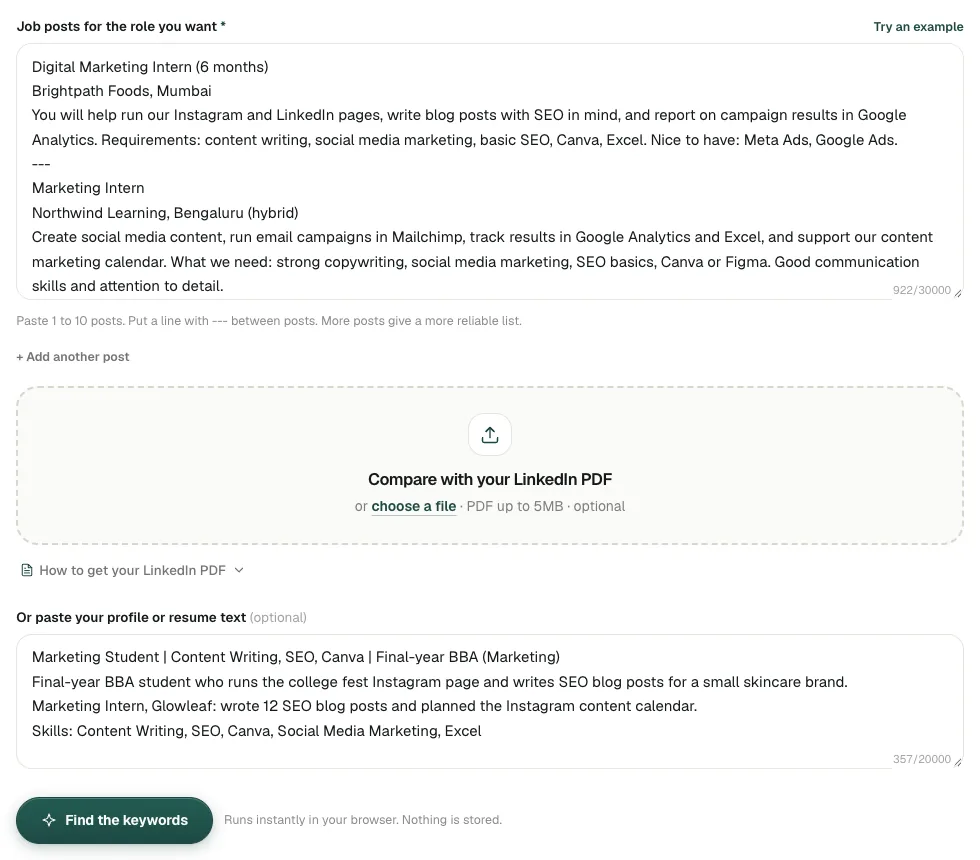
Paste the requirements, not just the title and company: that is where the skills are. The more posts you add (up to 10), the more reliable the ranking.
Try it on your profile
The free LinkedIn Keyword Finder applies this in a minute.
Keyword finder, step 2: Add your profile to compare
To see which keywords you already have, either drop your LinkedIn PDF on Compare with your LinkedIn PDF, or paste your headline, About, experience bullets and skills (or your resume) into the box below it. This step is optional; without it you still get the keyword list.
Click Find the keywords. The result is instant.
Keyword finder, step 3: Read the results
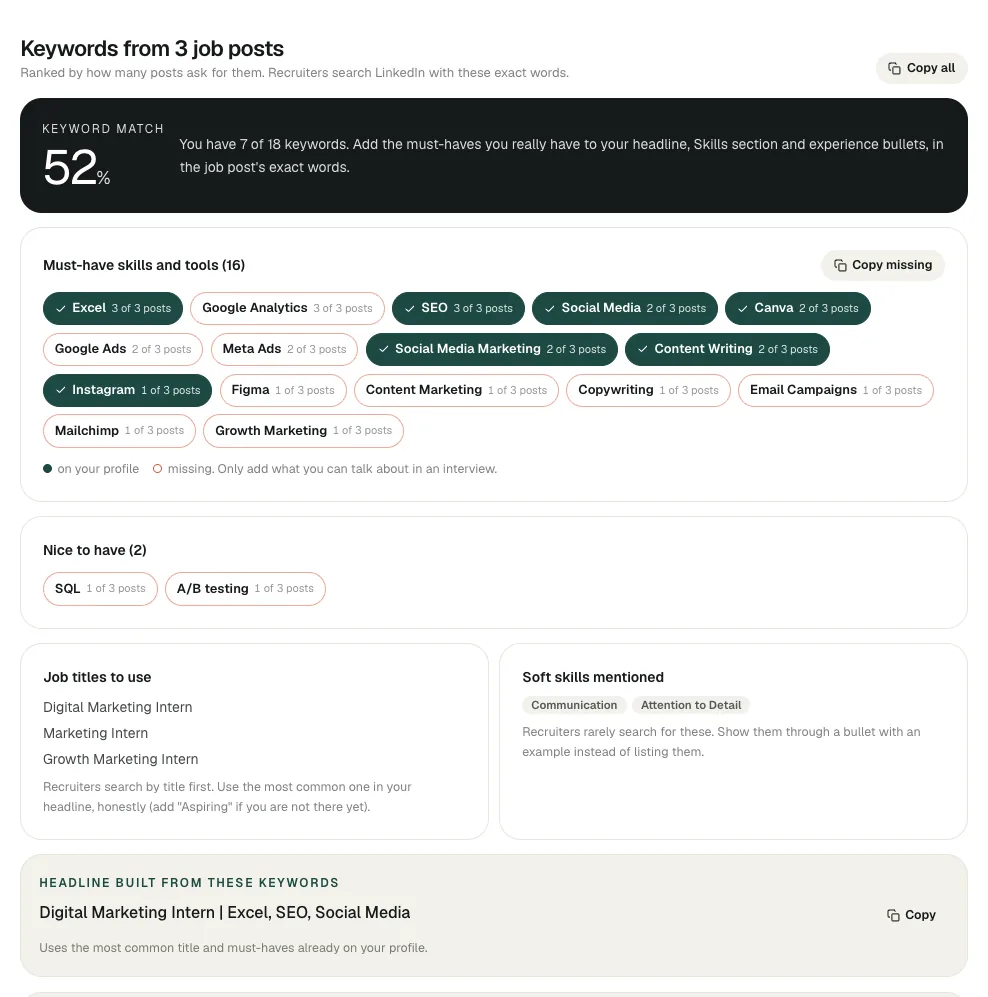
Read it from the top:
- Keyword match. A weighted share: keywords that more posts ask for count more, and must-haves count double, so it can differ from the plain count beside it (7 of 18 here). It is a measure of overlap with these posts, not a hiring chance.
- Must-have skills and tools, ranked by how many posts ask for them ("3 of 3 posts"). Filled chips are on your profile; outlined ones are missing. Copy missing copies the gaps.
- Nice to have: terms listed under "nice to have" or "a plus" in the posts. Worth adding if true, not urgent.
- Job titles to use: the titles the posts use. Recruiters search by title first, so use the most common one in your headline (with "Aspiring" if you are not there yet).
- Soft skills mentioned: recruiters rarely search for these. Show them in a bullet with an example instead.
- Other repeated terms: words the skills list does not know. Some are tools worth adding; some are just company names or words like "Requirements".
- Headline built from these keywords: the most common title plus the must-haves you already have. A starting point for the headline generator.
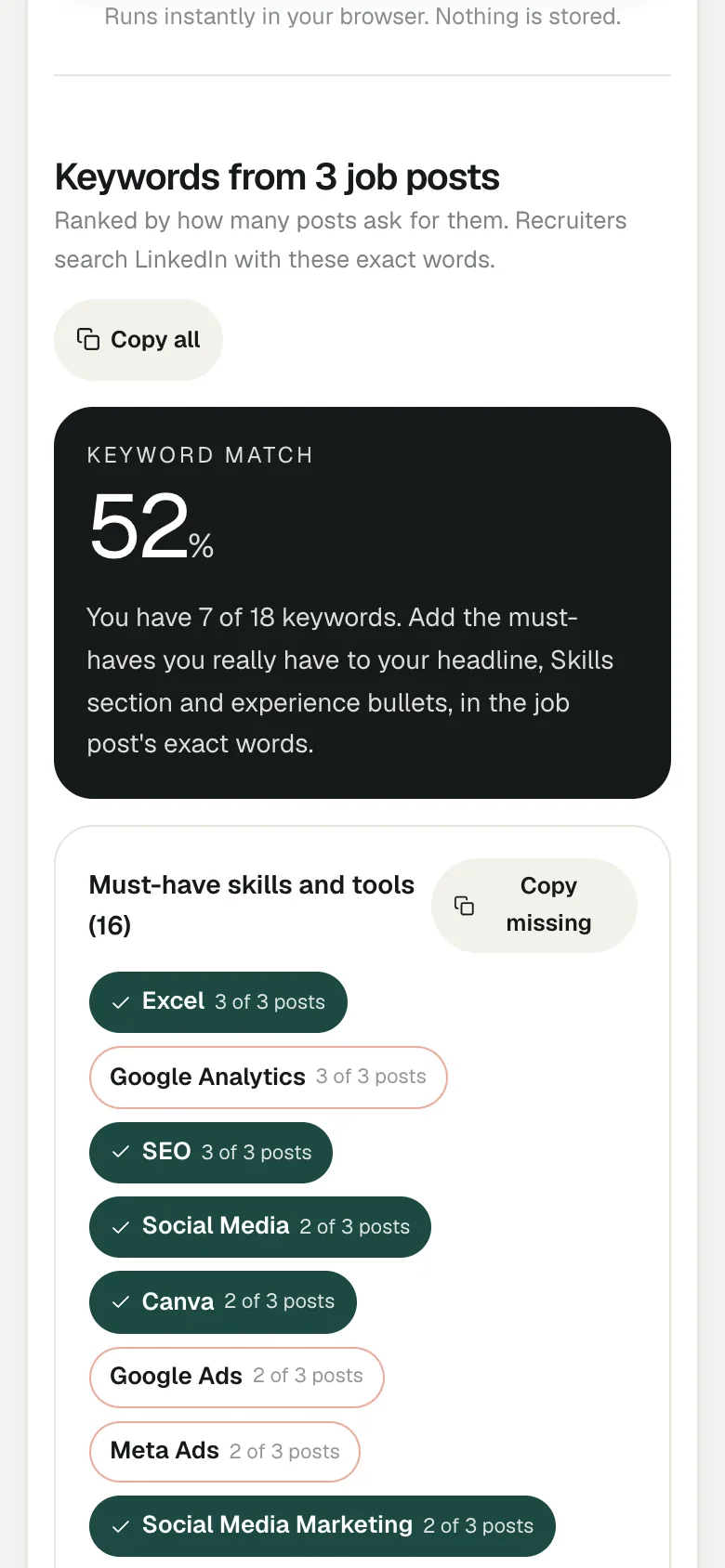
In the sample, the student has SEO, Canva and social media marketing, but Google Ads is in all three posts and missing from the profile. If he has used it, that is the first keyword to add.
Profile keyword analyzer: check your whole profile
Open the LinkedIn profile keyword analyzer. Drop your LinkedIn PDF, or paste your headline (required), About and skills. Under Field to check against, leave "Detect from my profile" or pick your field from the list, for example Marketing and growth, Data and analytics, Education or Healthcare.
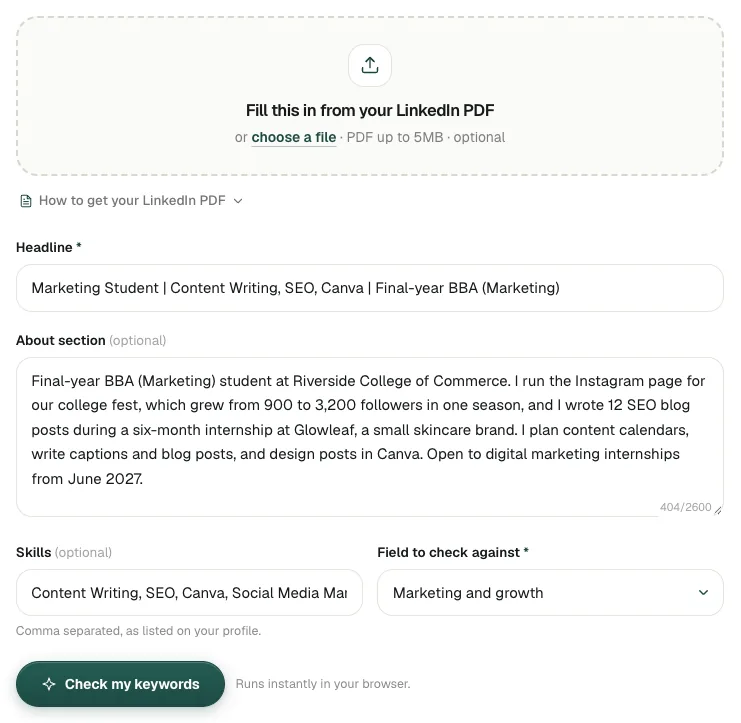
Click Check my keywords. You get:
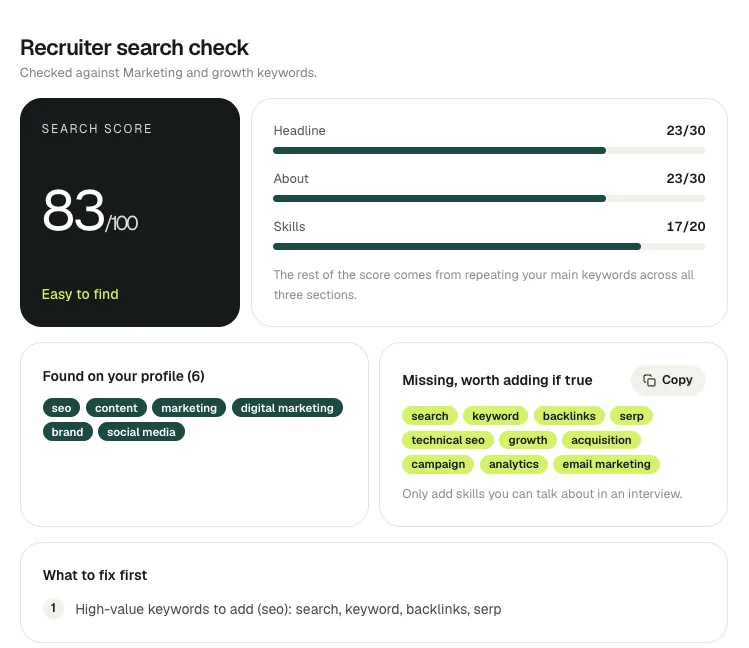
- Search score out of 100, labelled Easy to find (75 and up), Findable, with gaps (50 to 74) or Hard to find (under 50).
- Headline (out of 30), About (out of 30) and Skills (out of 20). The rest of the score comes from repeating your main keywords across all three.
- Found on your profile and Missing, worth adding if true: the field's common keywords you have and do not have.
- What to fix first: the changes that should move the score most.
The field list is general. For a marketing intern, "backlinks" or "SERP" may matter less than what your target job posts ask for, which is why the finder comes first.
Where to put the keywords you add
Add only keywords you could talk about in an interview, in the exact words the posts use, in this order of importance:
- Headline: your target title and your top 2 or 3 skills.
- Skills section: every relevant skill and tool, with your top ones pinned.
- Experience bullets: each keyword inside a real example ("Tracked campaign results in Google Analytics").
- About: your main keywords once or twice, in sentences.
Then use the same words on your resume; the resume maker has a keyword match for a job ad built in. For more depth, read where to put keywords on LinkedIn and the list of LinkedIn keywords by role.
Limits to know
- They count words, not ability. A keyword on your profile that you cannot back up hurts you in the interview.
- The finder only knows the posts you paste. Two posts give a shaky ranking; five give a useful one.
- Unusual tools may be missed by the finder's skills list; check "Other repeated terms".
- The analyzer's lists are general for each field and do not know your target role or country.
- A high score is not a guarantee of appearing in LinkedIn search, which also depends on location, network and activity.
Questions people ask
What is the difference between the keyword finder and the keyword analyzer?
The finder pulls keywords from the job posts you paste and shows which you have. The analyzer checks your headline, About and skills against a general keyword list for your field and gives a search score out of 100.
How many job posts should I paste into the keyword finder?
Three to five posts for the same kind of role works well; it accepts up to ten. Paste the full requirements, with a line of three dashes between posts.
Are the LinkedIn keyword tools free and private?
Yes. Both are free with no signup and use no AI. They run in your browser, so text you paste is not sent anywhere; a LinkedIn PDF you drop in is read on our server and not stored.
What is a good score on the profile keyword analyzer?
75 or more is labelled Easy to find, 50 to 74 Findable with gaps, and under 50 Hard to find. Use it to track changes to your own profile rather than to compare with others.
Should I add every missing keyword to my profile?
No. Add only skills you have and could discuss in an interview, starting with the must-haves that most posts ask for.
Written by Bhavishya Singla
Founder of LinkedInRank. Writes about how recruiters search LinkedIn and what makes a profile show up.
Add LinkedInRank as a preferred source on Google
See our new LinkedIn guides first in Google results.