In short
Save your LinkedIn profile as a PDF (open your profile, click More or Resources, then Save to PDF) and drop it into the free LinkedIn PDF to Resume Maker. You get an editable, single-column resume with your contact details, summary, skills, experience, education and certifications. Add your phone number, check every section, optionally tailor it to a job title or job ad, pick one of 12 themes and click Download PDF. Nothing is invented: anything missing from your PDF stays blank for you to fill in.
On this page
Before you start: what you need
You need two things:
- Your LinkedIn profile as a PDF. LinkedIn creates it for you: open your profile on a computer, click More (on some layouts, Resources) under your name, then Save to PDF. On a phone you have to use the browser's desktop site. The full walkthrough is in how to save your LinkedIn profile as a PDF.
- Five minutes to check the result. The tool reads your PDF; it does not guess. If your LinkedIn profile is thin, the resume will be too, so it is worth filling in your experience on LinkedIn first.
No PDF? You can also start from a blank resume and type everything in.
All screenshots in this guide were taken on linkedinrank.com with a made-up sample profile. The person, employers and contact details are made up.
Step 1: Drop your LinkedIn PDF
Open the LinkedIn PDF to Resume Maker and drag your PDF onto the box, or click choose a file. The file can be up to 5 MB, which every normal LinkedIn export is.
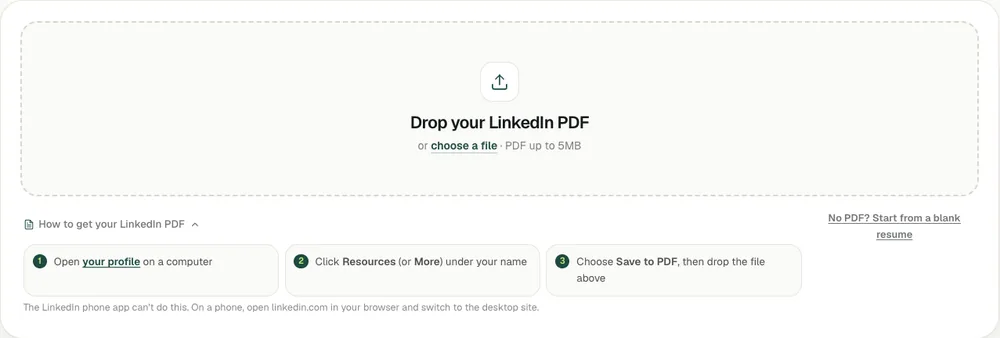
It takes a few seconds to read your experience, education and contact details. The PDF is read once to build your resume and is not stored.
Use the PDF LinkedIn makes with Save to PDF. A PDF made by printing the profile page from your browser has menus and buttons mixed into the text and reads badly.
Try it on your profile
The free LinkedIn PDF to Professional Resume Maker applies this in a minute.
Step 2: Check and edit each section
You now have two halves: an editor on the left and a live preview of the page on the right. Every change you type shows in the preview straight away.
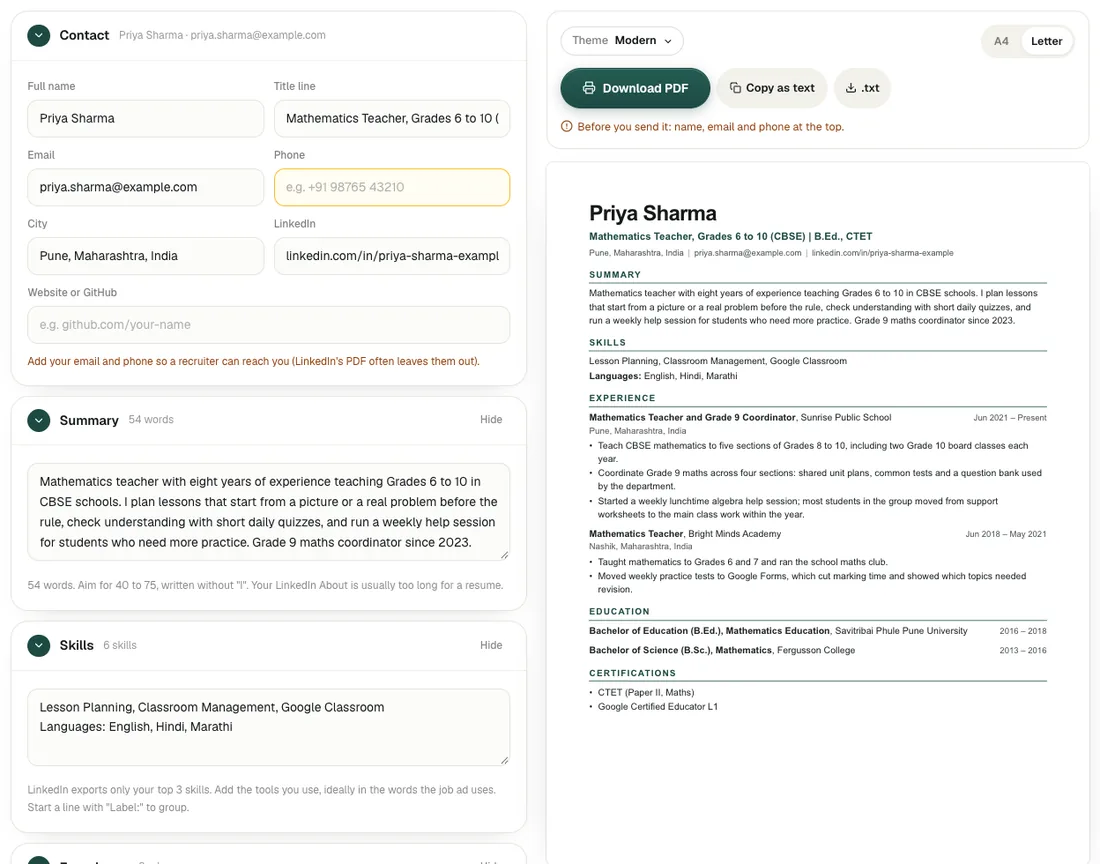
Go through it top to bottom:
- Contact. Add your phone number: LinkedIn's PDF usually leaves out phone and sometimes email, and a recruiter needs both. The title line comes from your LinkedIn headline; shorten it to the role you are applying for if it is long.
- Summary. Your LinkedIn About is often too long for a resume. Aim for 40 to 75 words: your level, your role, your top skills and one proof point. The editor counts the words for you.
- Skills. LinkedIn exports only your top 3 skills, so add the tools and skills you really use, ideally in the words the job ad uses. Start a line with "Label:" to group them, like "Languages: English, Hindi".
- Experience. Check each job title, company and date. Each bullet is its own line, so you can rewrite, reorder or delete one without touching the rest. Start each with what you did (Built, Led, Cut, Taught) and add a real number where you have one.
- Education and certifications. Check names and years. Delete anything that does not help for this job.
Each section has a Hide link if you want to leave it off, and the Section order panel under the preview lets you move, for example, Education above Experience if you are a student. The fresher resume format guide explains when to do that.
Step 3 (optional): Tailor it to a job
Above the editor is Tailor it to a job. It is optional, and it is the only part of this tool that uses AI.

- Job title only: type the title you are applying for and click Tailor my resume. With the field empty the button says Improve with AI and simply tightens your wording.
- Job title and job ad: click + Paste the job description for a keyword match and paste the ad. You also get the share of the job's key terms already on your resume, and the missing ones as chips you can add to your skills.
You see each suggested change next to your current text and can untick any you do not want before you apply them. Undo AI changes puts everything back. The AI may only reword what is already on your resume: lines that add a new tool, employer or number are dropped, and missing numbers come back as [brackets] for you to fill in or delete.
For what tailoring should and should not change, read how to tailor your resume to a job description.
Step 4: Pick a theme and paper size
Click Theme above the preview to see all 12 designs with your own resume in them: Classic, Modern, Compact, Executive, Banner, Slate, Clarity, Heritage, Minimal, Split, Scholar and Statement.
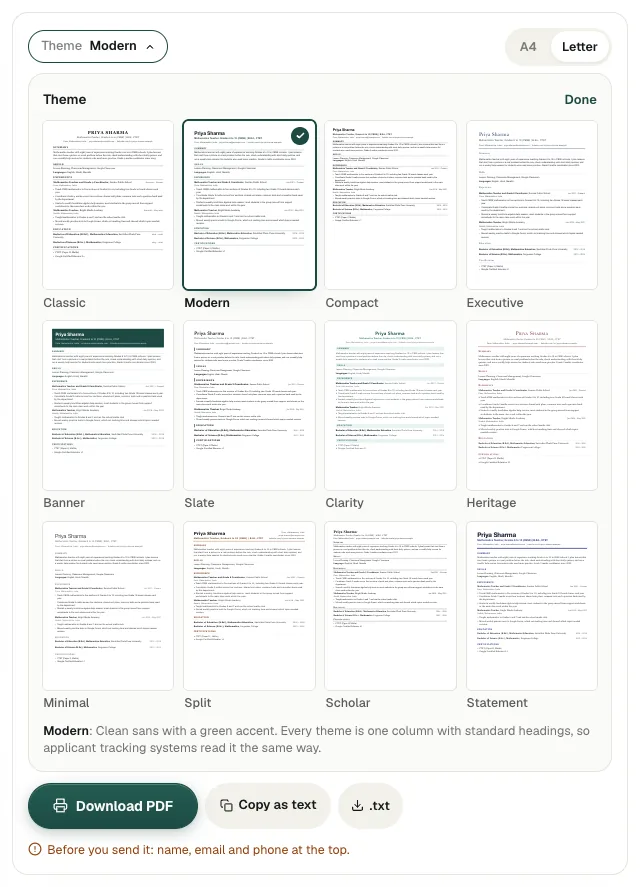
Pick by field and length rather than taste alone: Classic or Executive for traditional employers, Modern or Slate for most office and tech roles, Compact when you are just over one page, Scholar for long academic CVs.
Then set the paper size: A4 for India, the UK, Europe and most of the world, Letter for the US and Canada. The note under the preview says whether it fits on one page; dashed lines show where a new page starts.
Step 5: Run the resume check and download
Under the preview, Resume check lists what recruiters look for and what is still missing.
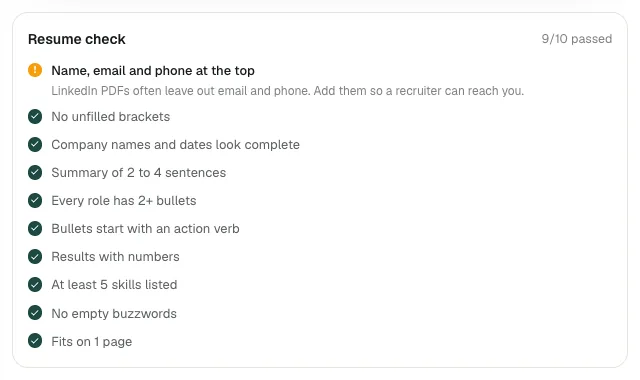
It checks contact details at the top, unfilled [brackets], company names and dates, summary length, at least two bullets per role, action verbs, numbers in your results, at least five skills, empty buzzwords and length. Fix the amber ones first.
Then you have three ways to take it with you:
- Download PDF opens your browser's print window. Set Destination to Save as PDF and turn off "Headers and footers" if they show. The PDF has real, selectable text.
- Copy as text for job portals that make you paste your resume into a box.
- .txt to keep a plain-text copy.
Next step: apply to roles that fit
With a resume and letters ready, a free LinkedInRank account takes the next steps with you: your profile check, up to 15 matched open roles from employers' own career pages (refreshed daily) with a weekly email of new ones, and an applications tracker. It is not a job board; you always apply on the employer's site. The Job Pack (with a 5-day free trial) adds a full LinkedIn rewrite and a resume and cover letter tailored to each job you choose; the trial shows up to 50 matched roles and the pack up to 150.
Using it on a phone
The tool works on a phone too. Editing and preview become two views, with a bar at the bottom to switch between Edit and Preview and a PDF button always in reach.
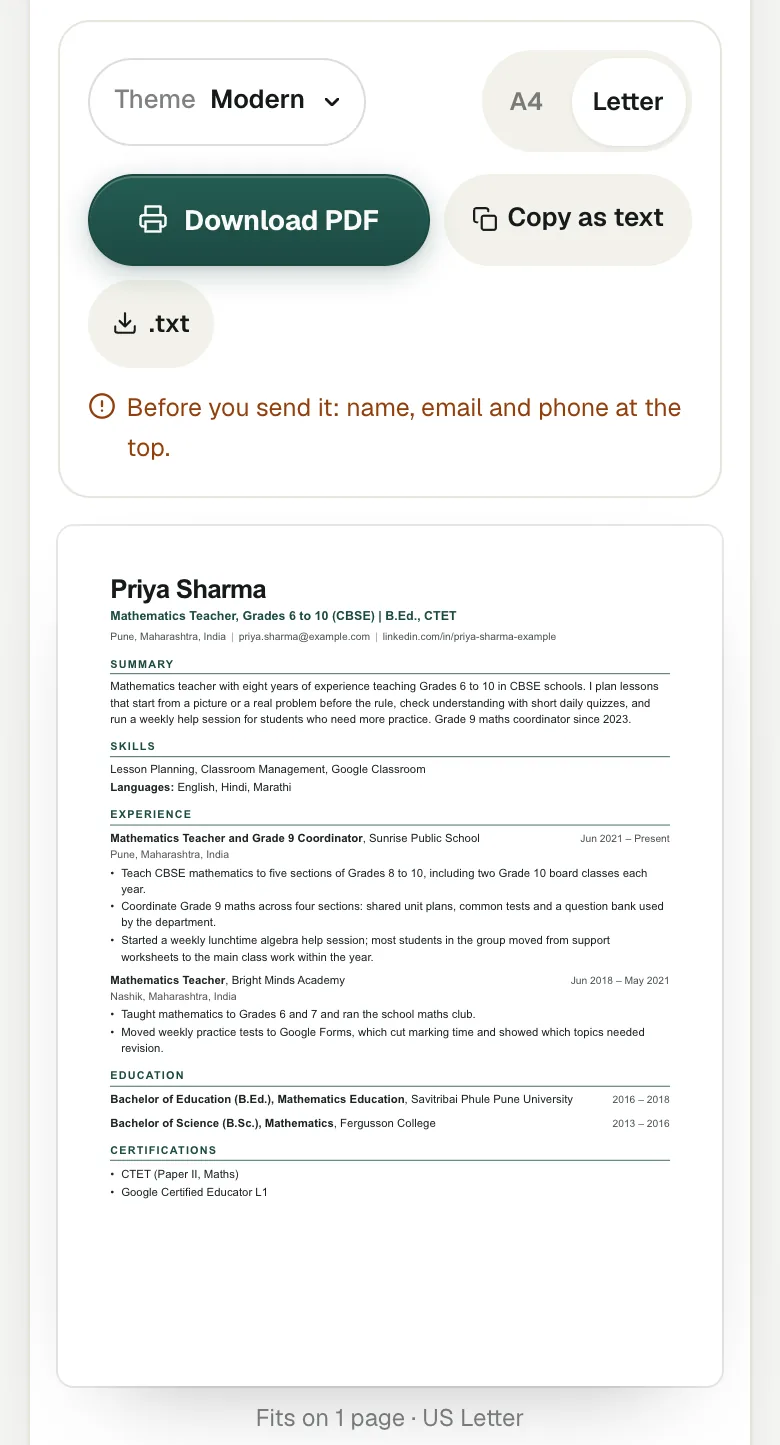
The hard part on a phone is getting the LinkedIn PDF in the first place, because the LinkedIn app cannot make one. Use your phone's browser in desktop mode, as described in the LinkedIn PDF guide, then choose the file from your Downloads.
What it does not do
Knowing the limits saves you an embarrassing send:
- It cannot add what is not in your PDF. Phone numbers, most skills, and anything you never put on LinkedIn have to be typed in.
- It does not save your work. Nothing is stored, so finish and download in one sitting, or copy the text somewhere safe. Loading a new PDF replaces your edits (it asks first).
- No Word file from the editor. You get a PDF and plain text. If an employer insists on .docx, paste the text into Word or Google Docs.
- Rare layouts can trip it up. If a company name or date was filled from a nearby line, the check says "roles to check against your profile" and highlights the field. Always read the preview before you send it.
- ATS-friendly is not a guarantee. A clean single-column layout means the software can read your resume. Whether it ranks well depends on how closely your words match the job, which is what ATS resume keywords covers.
Next, write the letter that goes with it: the cover letter generator guide uses the same PDF.
Questions people ask
How do I convert my LinkedIn profile to a resume for free?
Save your profile as a PDF from LinkedIn (More or Resources, then Save to PDF), drop it into the free LinkedIn PDF to Resume Maker, check each section, pick a theme and click Download PDF. There is no signup and no watermark.
Is a resume made from LinkedIn ATS-friendly?
The layout is: one column, standard section names and real text, with no tables or images. How well it ranks still depends on whether your words match the job ad, so add the job's key skills you really have.
Why is my phone number missing from the resume?
LinkedIn's PDF usually leaves out your phone number and sometimes your email. Type them into the Contact section before you download.
Can I download the resume as a Word file?
The editor gives you a PDF and plain text. For a .docx, copy the text into Word or Google Docs and save it from there.
Does the tool store my LinkedIn PDF?
No. The PDF is read once to build your resume and is not stored, so download or copy your resume before you close the page.
Written by Bhavishya Singla
Founder of LinkedInRank. Writes about how recruiters search LinkedIn and what makes a profile show up.
Add LinkedInRank as a preferred source on Google
See our new LinkedIn guides first in Google results.