In short
Open the free LinkedIn About section generator, drop your LinkedIn PDF or type your role, your experience and projects (one per line), your skills, your best result and what you want next. Click Write my About section to get 3 versions (Direct, Story and Skills-forward) of 120 to 220 words each. Pick one, edit it in place while the preview shows what appears before "see more", then copy it into LinkedIn.
On this page
Step 1: Start from your PDF or a blank form
Open the LinkedIn About section generator. If you drop your LinkedIn PDF, it fills in your role, up to four recent roles with what you did, your skills, education, certifications and any awards. Your current About is used as a source and improved, and the form tells you how many words it has.
Without a PDF, type into the fields yourself. The example below does that for a made-up student.
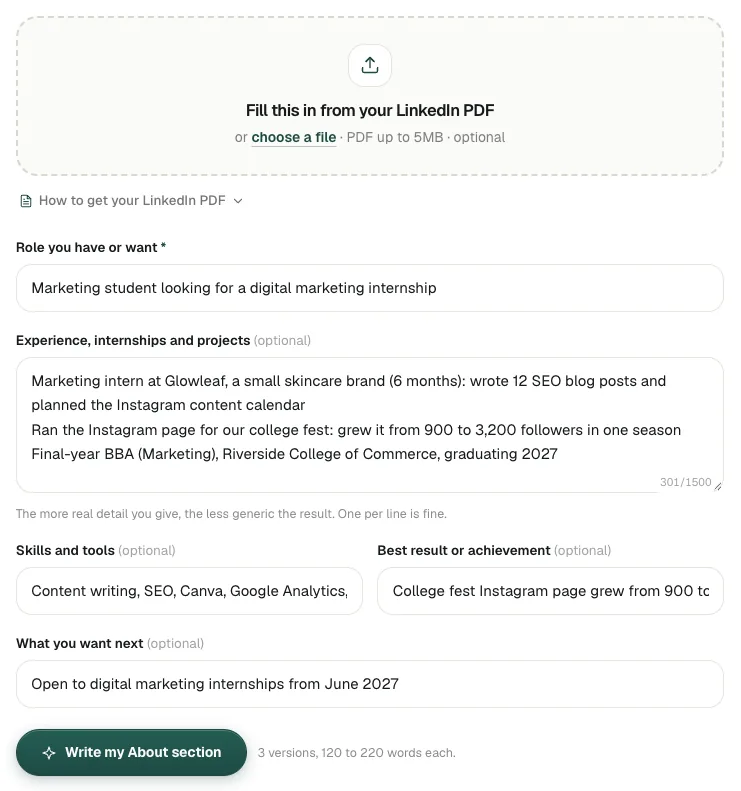
All screenshots in this guide were taken on linkedinrank.com with a made-up sample profile. The person, employers and contact details are made up.
Step 2: Give it real detail
The About generator can only be as specific as what you give it. The fields, and what makes each one strong:
- Role you have or want (required). Be specific: "Marketing student looking for a digital marketing internship" beats "Student".
- Experience, internships and projects. One per line, each with what you did and, if you can, a result. "Wrote 12 SEO blog posts" is usable; "Content work" is not.
- Skills and tools. The ones you use, in the words job posts use.
- Best result or achievement. One thing with a number, if you have it. It often becomes the line people remember.
- What you want next. The ending: the roles you are open to and from when, or what people should contact you about.
Click Write my About section. It usually takes 5 to 20 seconds.
Try it on your profile
The free LinkedIn About Section Generator applies this in a minute.
Step 3: Write and compare the three versions
You get three versions in tabs:
- Direct: who you are, what you have done, what you want, in that order. Good for job seekers and recruiters who skim.
- Story: opens with how you got into your field. Good when your path is part of the point, such as a career change.
- Skills-forward: leads with what you can do and the tools you use. Good for technical and specialist roles.
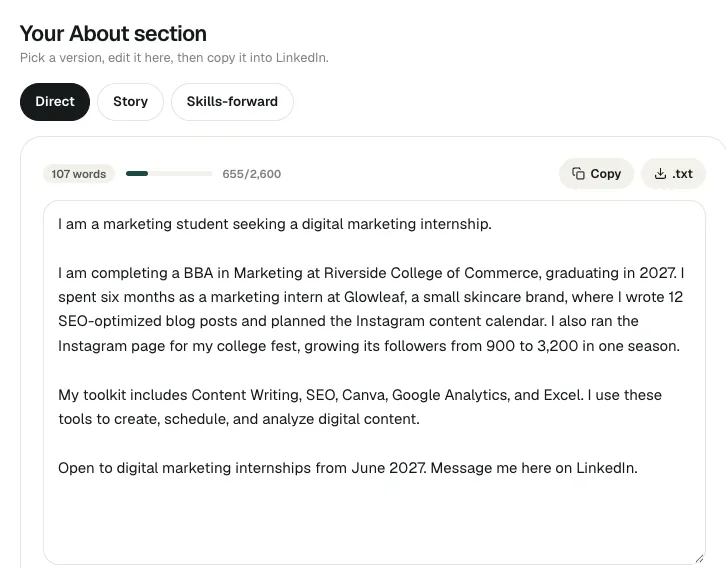
Each version shows its word count and a meter against LinkedIn's 2,600-character limit. Read all three before you choose; many people take the structure of one and a line or two from another.
Step 4: Edit the opening lines
The text box is editable, and what you change is what you copy. Spend your time on the first two lines: on LinkedIn only the start of your About shows before "see more", and on a phone that is very little. The Before "see more" preview under the box shows roughly what people see before they click.
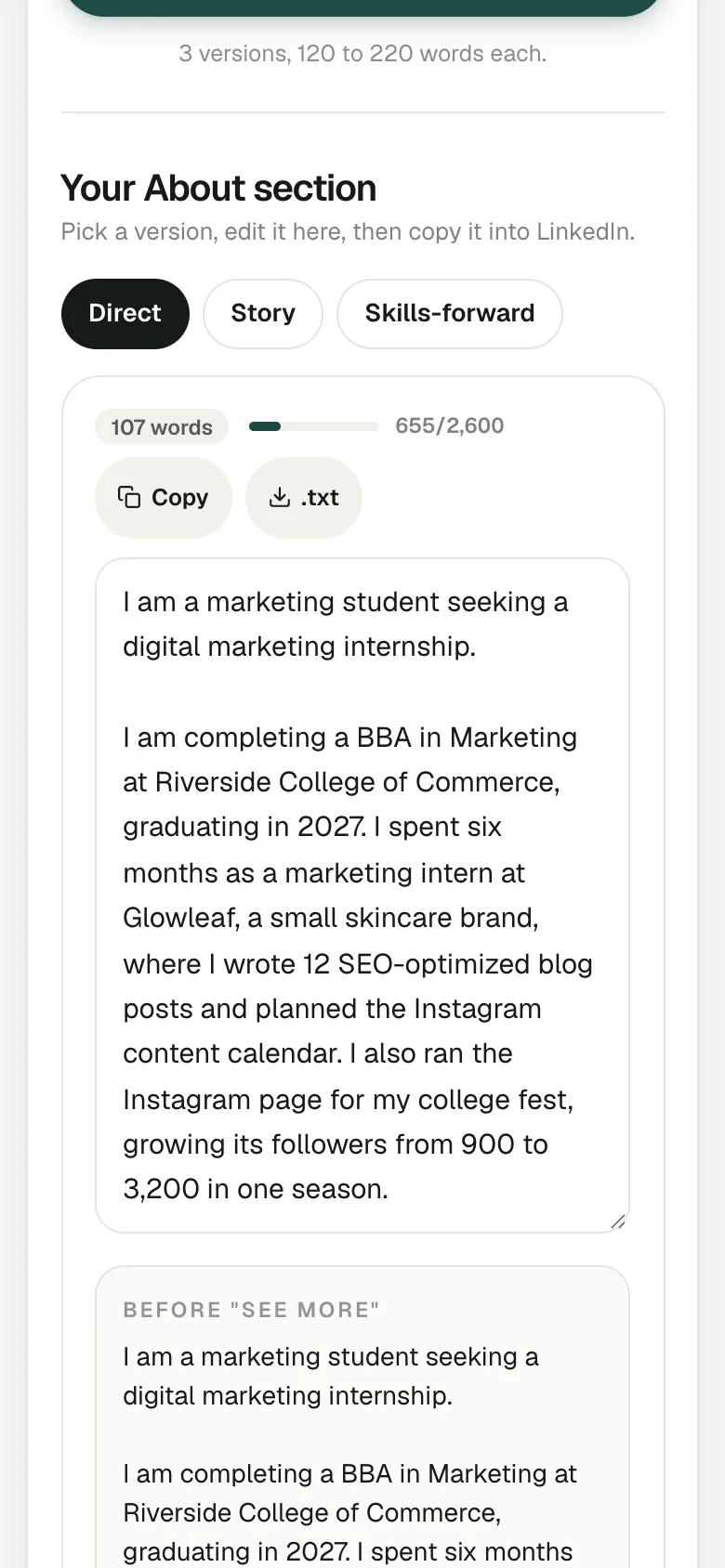
Edits worth making:
- Replace a plain opening like "I am a marketing student seeking..." with your strongest fact: "I grew our college fest's Instagram from 900 to 3,200 followers in one season."
- Fill in or delete any [bracket]. They mark places where a real number or detail would help.
- Add the words recruiters search for that you have but the draft left out. The keyword tools find them.
- Make it sound like you. Read it aloud and change anything you would not say.
More on structure and openings: how to write a LinkedIn About section.
Step 5: Paste it into LinkedIn
- Click Copy (or .txt to keep a file).
- On LinkedIn, open your profile and click the pencil in the About section (or Add profile section, then About, if you have none).
- Paste, check the line breaks survived, and save.
Keep the short paragraphs: they are much easier to read on a phone than one block of text. Then make sure your headline uses the same role and top skills, so the two tell one story.
Limits to know
- It cannot add facts you did not give it. A short form gives a short, general About.
- It writes in the first person, which is normal on LinkedIn. If you prefer a different voice, edit it.
- If the AI is busy, you get a template-based draft from your inputs with a note and a retry button.
- Nothing is saved. Copy your version before you leave the page.
- Check every claim. AI drafts can be wrong, and your About is public.
Questions people ask
Is the LinkedIn About section generator free?
Yes, with no signup. Each run writes three versions from what you entered or what is in your LinkedIn PDF.
Which version should I pick: Direct, Story or Skills-forward?
Direct suits most job seekers, Story suits career changers and people whose path matters, and Skills-forward suits technical and specialist roles. You can also combine lines from more than one.
How long should my LinkedIn About section be?
The versions are 120 to 220 words, which is enough for most people. LinkedIn allows 2,600 characters, but only the opening shows before "see more", so lead with your strongest line.
Will it improve my existing About section?
Yes. If you drop your LinkedIn PDF, your current About is used as a source, and the new versions keep its facts while making them clearer.
Does the generator invent achievements?
It is built to use only what you give it, and leaves [brackets] where a real number would help. Still, read every line before you post it.
Written by Bhavishya Singla
Founder of LinkedInRank. Writes about how recruiters search LinkedIn and what makes a profile show up.
Add LinkedInRank as a preferred source on Google
See our new LinkedIn guides first in Google results.